instrument panel TESLA MODEL S 2017 (UK) User Guide
[x] Cancel search | Manufacturer: TESLA, Model Year: 2017, Model line: MODEL S, Model: TESLA MODEL S 2017Pages: 186, PDF Size: 4.67 MB
Page 54 of 186
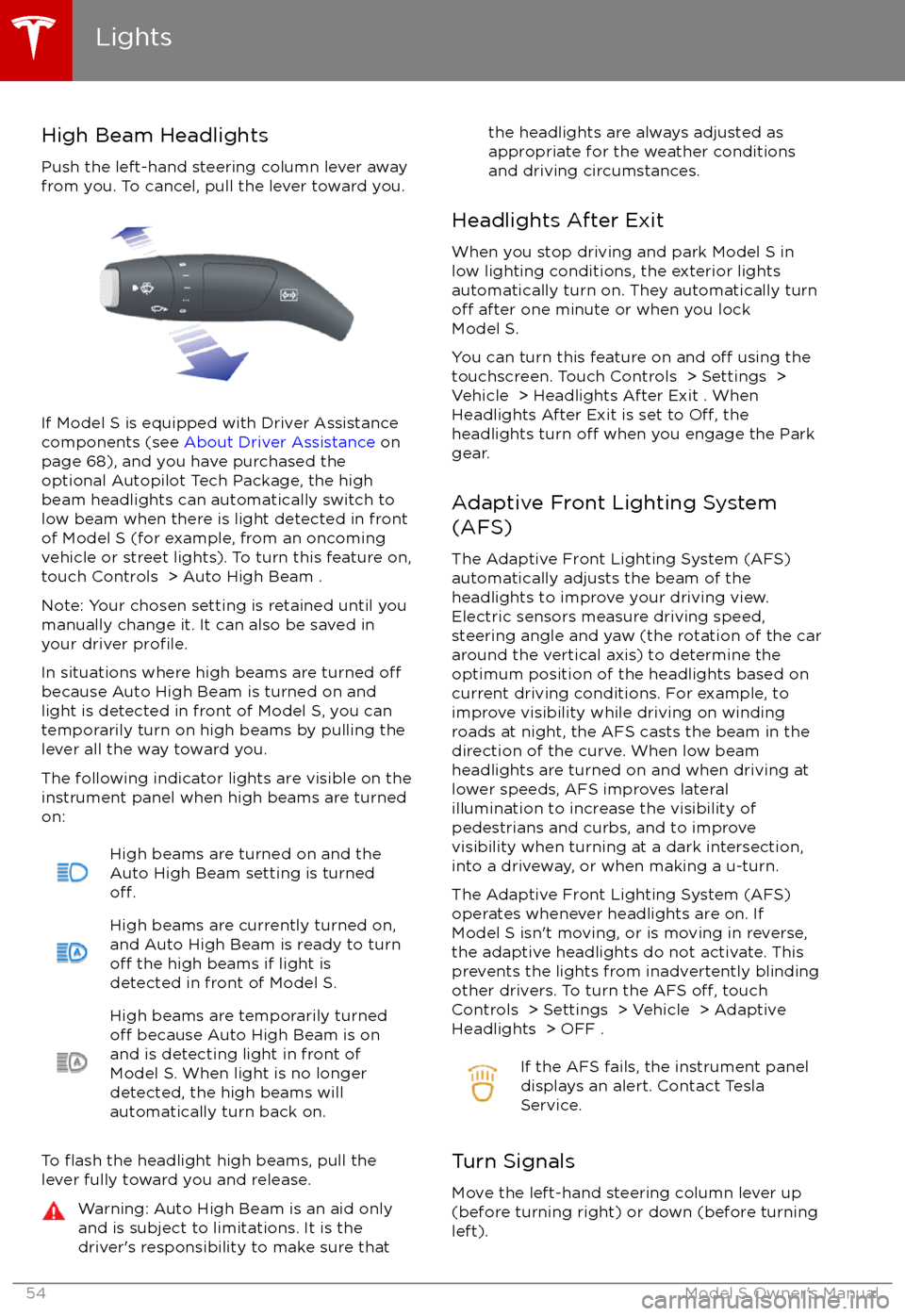
High Beam HeadlightsPush the left-hand steering column lever away
from you. To cancel, pull the lever toward you.
If Model S is equipped with Driver Assistance
components (see About Driver Assistance on
page 68), and you have purchased the
optional Autopilot Tech Package, the high
beam headlights can automatically switch to low beam when there is light detected in front
of Model S (for example, from an oncoming vehicle or street lights). To turn this feature on,touch Controls > Auto High Beam .
Note: Your chosen setting is retained until you manually change it. It can also be saved in
your driver
profile.
In situations where high beams are turned offbecause Auto High Beam is turned on and light is detected in front of Model S, you can
temporarily turn on high beams by pulling the
lever all the way toward you.
The following indicator lights are visible on the
instrument panel when high beams are turned
on:
High beams are turned on and the
Auto High Beam setting is turned
off.
High beams are currently turned on,
and Auto High Beam is ready to turn
off the high beams if light is
detected in front of Model S.
High beams are temporarily turnedoff because Auto High Beam is on
and is detecting light in front of
Model S. When light is no longer
detected, the high beams will
automatically turn back on.
To flash the headlight high beams, pull the
lever fully toward you and release.
Warning: Auto High Beam is an aid only and is subject to limitations. It is the
driver
Page 55 of 186

The turn signals stop operating when canceledby the steering wheel, or when you return the
lever to the central position.
The corresponding turn signal
indicator lights up on the instrument
panel when a turn signal is
operating. You also hear a clicking
sound.Warning: If Model S is equipped with both
Autopilot hardware and the optional
Autopilot Tech Package, and
Traffic-
Aware Cruise Control is active, engaging
a turn signal can cause Model S to accelerate when using
Traffic-AwareCruise Control in specific situations (see
Overtake Acceleration on page 73).
Warning: If Model S is equipped with both
Autopilot hardware and the optional
Autopilot Tech Package, and Autosteer is active, engaging a turn signal can cause
Model S to change lanes (see Auto Lane
Change on page 79).
Lane Change Flash
To indicate a lane change, quickly press the
lever up or down against the spring pressure,
then release. The corresponding turn signal
flashes three times.
Hazard Warning Flashers To turn on the hazard warning
flashers, press
the button located on the side of the
touchscreen closest to the steering wheel. All
turn signals
flash. Press again to turn off.
Note: Hazard warning flashers operate even
without a Model S key nearby.
Lights
Driving55
Page 57 of 186
Braking Systems
Model S has an anti-lock braking system (ABS) that prevents the wheels from locking when
you apply maximum brake pressure. This
improves steering control during heavy
braking in most road conditions.
During emergency braking conditions, the
ABS constantly monitors the speed of each
wheel and varies the brake pressure according
to the grip available.
The alteration of brake pressure can be felt as
a pulsing sensation through the brake pedal.
This demonstrates that the ABS is operating
and is not a cause for concern. Keep
firm and
steady pressure on the brake pedal while
experiencing the pulsing.
The ABS indicator flashes briefly on
the instrument panel when you firststart Model S. If this indicator lights
up at any other time, an ABS fault
has occurred and the ABS is not
operating. Contact Tesla. The braking system remains fully operational and
is not
affected by an ABS failure.
However, braking distances may increase.
If the instrument panel displays this
indicator at any time other than
displaying
briefly when you first start
Model S, a brake system fault is
detected or the brake
fluid level is
low. Contact Tesla immediately.
Emergency Braking
In an emergency, fully press the brake pedal
and maintain
firm pressure, even on low
traction surfaces. The ABS varies the braking
pressure to each wheel according to the
amount of traction available. This prevents
wheels from locking and ensures that you stop
as safely as possible.
Warning: Do not pump the brake pedal.
Doing so interrupts operation of the ABS
and can increase braking distance.Warning: Always maintain a safe distance
from the vehicle in front of you and be
aware of hazardous driving conditions.
While the ABS can improve stopping
distance, it cannot overcome the laws of physics. It also does not prevent the
danger of hydroplaning (where a layer of
water prevents direct contact between the tires and the road).
If Model S is equipped with Autopilot
hardware, Automatic Emergency Braking
automatically applies full braking in situations
where a collision is considered imminent (see
Automatic Emergency Braking on page 89).
Warning: Automatic Emergency Braking
is not designed to prevent a collision. At best, it can minimize the impact of a
frontal collision by attempting to reduce
your driving speed. Depending on Automatic Emergency Braking to avoid a
collision can result in serious injury or death.
Brake Wear
Model S brake pads are equipped with wear
indicators. A wear indicator is a thin metal
strip attached to the brake pad that squeals as
it rubs against the rotor when the pad wears
down. This squealing sound indicates that the
brake pads have reached the end of their service life and require replacement. To stop
the squealing, contact Tesla Service.
Brakes must be periodically inspected visually by removing the tire and wheel. For detailed
specifications and service limits for rotors and
brake pads, see Brakes on page 165.
Warning: Neglecting to replace worn
brake pads results in damage to the
braking system and can create a braking
hazard.
Brakes
Driving57
Page 58 of 186

Regenerative Braking
Whenever Model S is moving and your foot is
off the accelerator, regenerative braking slows
down Model S and feeds any surplus energy
back to the Battery.
By anticipating your stops and simply
removing pressure from the accelerator to slow down, you can take advantage ofregenerative braking to increase driving range.
Of course, this is no substitute for regular
braking when needed for safety.
Note: If regenerative braking is aggressively
slowing Model S, such as on a steep descent,
brake lights turn on to alert other road users
that you are slowing down.
The Energy app displays real-time feedback
on the amount of energy being gained by
regenerative braking. You can also display the
power meter on either side of the instrument
panel by choosing Energy using the scroll
button on the steering wheel (see Steering
Wheel on page 39).
The amount of energy fed back to the Battery using regenerative braking can depend on the
current state of the Battery and the charge
level setting that you are using. If regenerative
braking is limited, a dashed yellow line
displays on the power meter. For example,
regenerative braking may be limited if the Battery is already fully charged or if the
ambient temperature is low.
To Set the Regenerative Braking Level
You can use the touchscreen to change the
level of regenerative braking:
1. Touch Controls > Driving > Regenerative Braking .
2. Choose from two levels:
Page 59 of 186

How It WorksThe traction control system constantly
monitors the speed of the front and rear
wheels. If Model S experiences a loss of
traction, the system minimizes wheel spin by
controlling brake pressure and motor power.
By default, the traction control system is
always active. Under normal conditions, it should remain active to ensure maximum
safety.This indicator flashes on the
instrument panel whenever the
traction control system is actively
controlling brake pressure and motor
power to minimize wheel spin. If the
indicator stays on, a fault is detected with the traction control system.
Contact Tesla Service.Warning: Traction control cannot prevent
accidents caused by driving dangerously
or turning too sharply at high speeds.Warning: If the above indicator remains
illuminated in situations in which you have
not enabled Slip Start (described next), the traction control system may not be
operating correctly. Contact Tesla Service immediately.
Allowing Wheel Slip
To allow the wheels to spin at a limited speed,
you can enable Slip Start. Slip Start can be
enabled only when Model S is moving 30 mph
(48 km/h) or slower. Slip Start automatically
disables when the speed exceeds 50 mph
(80 km/h).
Under normal conditions, Slip Start should not
be enabled. Enable it only in circumstances where you deliberately want the wheels tospin, such as:
Page 60 of 186

How Park Assist Works
Model S has several sensors designed to detect the presence of objects nearby. When
moving slowly in Drive or Reverse, the sensors
alert you if an object is detected in close proximity to the front and rear of your
Model S.
Note: Depending on date of manufacture and options selected at time of purchase, someModel S vehicles are not equipped with theparking sensors.Warning: The Park Assist images provided
below are representative only. The exact
number and location of sensors may vary
depending on the date your Model S was
manufactured.
The sensors are activated when driving less
than 5 mph (8 km/h).
Warning: Never depend on Park Assist to
inform you if an area you are approaching is free of objects and/or people. Several
external factors can reduce the
performance of Park Assist, causingeither no readings or false readings (see
Limitations and False Warnings on page
61). Therefore, depending on Park
Assist to determine if Model S is
approaching an obstruction can result in
damage to the vehicle and/or objects,
and can potentially cause serious injury. Always inspect the area with your own eyes. When reversing, perform shoulder
checks and use all mirrors. Park assist does not detect children, pedestrians,bicyclists, animals, or objects that are
moving, protruding, located too far above
or below the sensors, or too close or too far from the sensors. Park Assist is for
guidance purposes only and is not
intended to replace your own direct visual
checks. It is not a substitute for careful
driving.
Visual and Audio Feedback
When you shift to Reverse, the Park Assist
view displays on the left side of the instrument
panel, showing any objects that are in close
proximity to the front and rear of Model S.
This view closes when you shift into Drive
unless objects are detected close to the front
of the Model S, in which case the Park Assist
view closes automatically when your driving
speed exceeds 5 mph (8 km/h) . When
reversing, visual feedback also displays on the
touchscreen, immediately below the camera
view (see Rear View Camera on page 67).
You can manually close the park assist view on
the touchscreen by touching the X in the
upper left corner.
When driving with the Camera app displayed
on the touchscreen, you can switch to the
Park Assist view when driving at speeds below
5 mph (8 km/h) . Touch the button located in the upper left corner of the Camera app
window. This is useful if you need assistance with parallel parking.
If chimes are turned on (see Controlling
Audible Feedback on page 61), an audible
beep sounds as you approach an object. You
can temporarily mute the chime by pressing
the scroll wheel on the left side of the steering
wheel or by touching the mute button located
on the in the bottom left corner of the Park
Assist view.
Note: If Model S is equipped with software
version 6.1 or newer, and you are driving with
the camera app displayed on the touchscreen, you can switch to the Park Assist view by
touching the icon in the upper left corner of
Park Assist
60Model S Owner
Page 61 of 186

the camera app window. You must be drivingat speeds below 5 mph (8 km/h).
Note: If a sensor is unable to provide
feedback, the instrument panel displays an
alert message.Caution: Keep sensors clean from dirt,
debris, snow, and ice. Avoid using a high
pressure power washer on the sensors
and do not clean a sensor with a sharp or abrasive object that can scratch or
damage its surface.Caution: Do not install accessories or
stickers on or near the parking sensors.
Controlling Audible Feedback
You can use Park Assist with or without
audible feedback. To turn chimes on or
off,touch Controls > Settings > Safety & Security
> Park Assist Chimes .
You can also mute the chimes temporarily by
pressing the scroll wheel on the left side of the steering wheel or by touching the mute buttonin the bottom left corner of the Park Assist
view. The chimes are muted until you shift into a
different gear or drive over 5 mph (8 km/h).
Limitations and False Warnings
The parking sensors may not function
correctly in these situations:
Page 62 of 186

When Model S is stopped, Vehicle Holdcontinues to apply the brakes even after you
remove your foot from the brake pedal. When
driving on a hill or on a
flat surface, brake as
you normally would. You can release the brake
pedal, and remain stopped (even on a hill),
whenever the instrument panel displays the
Vehicle Hold indicator light.
This indicator displays on the
instrument panel whenever Vehicle
Hold is engaged.
To disengage Vehicle Hold, press the
accelerator pedal or press and release the
brake pedal.
Note: Shifting into Neutral also disengages Vehicle Hold.
Note: After actively braking Model S for
approximately 10 minutes, Model S shifts into
Park and Vehicle Hold cancels. Model S also shifts into Park if it detects that the driver has
left the vehicle.
Vehicle Hold
62Model S Owner
Page 70 of 186

If Model S is equipped with Driver Assistance
components (see About Driver Assistance on
page 68) and you have purchased the optional Autopilot Tech Package, the forward lookingcamera and the radar sensor are designed to
determine when there is a vehicle in front of
you in the same lane. If the area in front of Model S is clear,
Traffic-Aware Cruise Control
maintains a set driving speed. When a vehicle is detected,
Traffic-Aware Cruise Control is
designed to slow down Model S as needed to maintain a selected time-based distance from
the vehicle in front, up to the set speed.
Traffic-Aware Cruise Control does not
eliminate the need to watch the road in front
of you and to apply the brakes when needed.
Traffic-Aware Cruise Control is primarily
intended for driving on dry, straight roads,
such as highways and freeways. It should not
be used on city streets.
Warning: Traffic-Aware Cruise Control is
designed for your driving comfort and
convenience and is not a collision warning or avoidance system. It is your
responsibility to stay alert, drive safely,
and be in control of the vehicle at all
times. Never depend on
Traffic-AwareCruise Control to adequately slow down
Model S. Always watch the road in front
of you and be prepared to take corrective
action at all times. Failure to do so can
result in serious injury or death.
Warning: Although Traffic-Aware Cruise
Control is capable of detecting
pedestrians and cyclists, never depend on
Traffic-Aware Cruise Control to
adequately slow down Model S for them.
Always watch the road in front of you and be prepared to take corrective action at
all times. Failure to do so can result in
serious injury or death.
Warning: Do not use Traffic-Aware Cruise
Control on city streets or on roads where
traffic conditions are constantly changing.
Warning: Do not use Traffic-Aware Cruise
Control on winding roads with sharp
curves, on icy or slippery road surfaces,
or when weather conditions (such as
heavy rain, snow, fog, etc) make it
inappropriate to drive at a consistent
speed.
Traffic-Aware Cruise Control does
not adapt driving speed based on road
and driving conditions.
Operating Traffic-Aware Cruise
ControlThe instrument panel
displays a gray speedometer
icon on the left side of the
driving speed to indicate
that
Traffic-Aware Cruise
Control is available but the
cruising speed has not been
set. Unless a vehicle is
detected ahead of you, you
must be driving at least
5 mph (8 km/h) to use
Traffic-Aware Cruise Control.
If a vehicle is detected ahead
of you, you can use
Traffic-
Aware Cruise Control at any
speed, even when stationary.
When driving at your desired speed, set the
cruising speed by moving the cruise control
lever up or down (or pulling it
briefly toward
you), then releasing.
The speedometer icon on the
instrument panel turns blue
and displays the set speed to
indicate that
Traffic-AwareCruise Control is actively
maintaining the set speed.
You can now release the accelerator pedal and
allow Traffic-Aware Cruise Control to maintain
your set speed. When no vehicle is detected ahead,
Traffic-Aware Cruise Control maintains
the set speed. If a vehicle is detected, Traffic-
Aware Cruise Control maintains your chosen
following distance, up to the set speed,
accelerating and decelerating Model S as
needed. When the vehicle you are following is
no longer detected,
Traffic-Aware Cruise
Control accelerates back to the set speed.
Traffic-Aware Cruise Control also adjusts the
speed as appropriate when entering and
exiting curves.
Traffic-Aware Cruise Control
70Model S Owner
Page 71 of 186
You can accelerate at any time when driving ata set speed using Traffic-Aware Cruise
Control. But when you release the accelerator,
Model S returns to the set speed.
When following a vehicle,
Traffic-Aware Cruise
Control remains active at low speeds, even if
Model S comes to a standstill while following a
vehicle. When
traffic is moving again, Traffic-
Aware Cruise Control resumes operating at
your currently set speed. However, if an or
object is detected in front of Model S,
Traffic-
Aware Cruise Control goes into a HOLD state
and the instrument panel displays a message
indicating that you need to resume cruise
control. To resume, press the accelerator pedalor pull the cruise control lever toward you (see
Canceling and Resuming on page 73).
In right hand
traffic, engaging the right turn
signal when driving in the right-most lane
within 164 feet (50 meters) of an exit (on a
controlled access road only, such as a highway
or freeway), causes
Traffic-Aware Cruise
Control to assume you are exiting. As a result,
Traffic-Aware Cruise Control begins to slow
down the vehicle. Likewise in left hand traffic,when engaging the left turn signal when
driving in the left-most lane within 164 feet
(50 meters) of an exit. The onboard GPS (Global Positioning System) determines if you
are driving in a region with right or left hand
traffic. In situations where GPS data is
unavailable (for example, inadequate signal), engaging the turn signal near an exit does not
cause
Traffic-Aware Cruise Control to slow
down the vehicle.
Note: If you double-pull the cruise control
lever (or single-pull when
Traffic-Aware Cruise
Control is active), Autosteer activates and the set speed changes to either your current
driving speed, or the speed limit plus any
offset you have defined, whichever is greater
(see Cruising at the Speed Limit on page 72).
Note: When
Traffic-Aware Cruise Control is
actively slowing down Model S to maintain the selected distance from the vehicle ahead, thebrake lights turn on to alert other road users
that you are slowing down. You may also
notice slight movement of the brake pedal.
Note: If traveling 80 km/h or faster,
Traffic-
Aware Cruise Control requires that you be in a
passing lane in order to pass a vehicle. If you
are in a non-passing lane (to the right of a
vehicle in right-hand
traffic or to the left of a
vehicle in left-hand traffic), Traffic-AwareCruise Control prevents you from passing
vehicles. Instead, Model S will slow down and
match the vehicle